How to Update Your Resume on LinkedIn (2026 Guide)
- Table of contents
November 12, 2025
| |9 min read
| |TL;DR: How to Update Your Resume on LinkedIn in 2026
If you just want the quick fix, here’s the fast route to updating, deleting, or replacing your resume on LinkedIn.
| Action | Where to Do It |
|---|---|
| Go to Jobs → Application Settings | Manage your uploaded resumes for Easy Apply job submissions. |
| Delete old resumes using the three-dot menu (⋯) | Removes outdated versions that may still appear in applications. |
| Upload a new PDF or Word file (≤ 2 MB) | The latest upload automatically becomes your default resume. |
| Remove from Featured section if it’s public | Navigate to Profile → Featured → Delete to clean up your public view. |
| Disable recruiter access (optional) | Toggle “Share with recruiters” Off in Job Preferences for privacy. |
-> Quick Link: linkedin.com/jobs/application-settings
Pro Tip: LinkedIn only keeps the four most recent resumes, so tidy up older uploads before adding new ones. Keeping your resume fresh ensures recruiters always see your most current experience and keywords.
Method 1: Update Your Resume on LinkedIn via Job Application Settings (Easy Apply)
The quickest way to update your resume on LinkedIn through the Easy Apply settings. This section controls which version of your resume recruiters see when you apply directly on LinkedIn.
Step 1: Go to the Jobs tab (the briefcase icon at the top of your LinkedIn homepage).
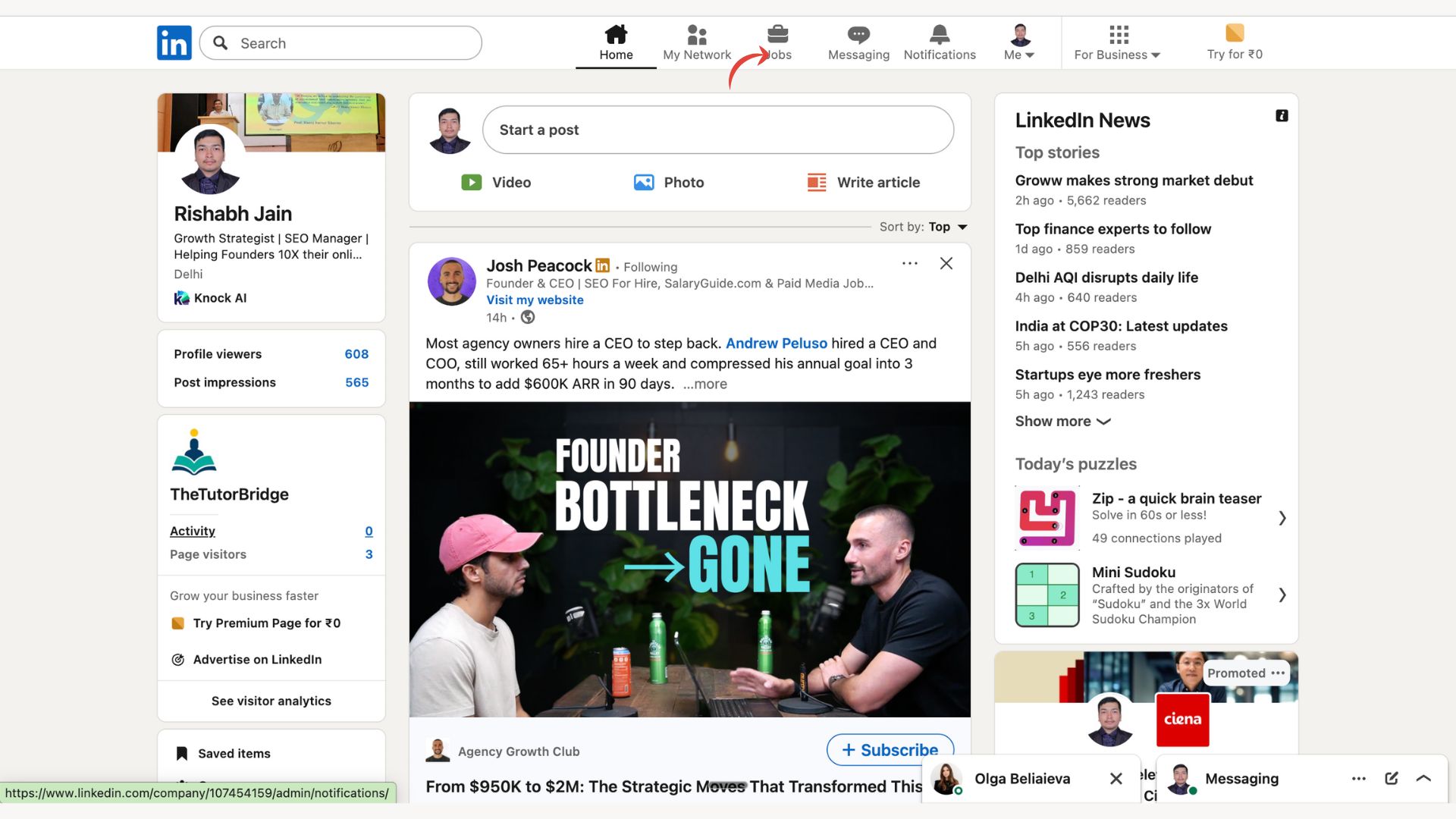
Step 2: Click Preferences on the left sidebar.
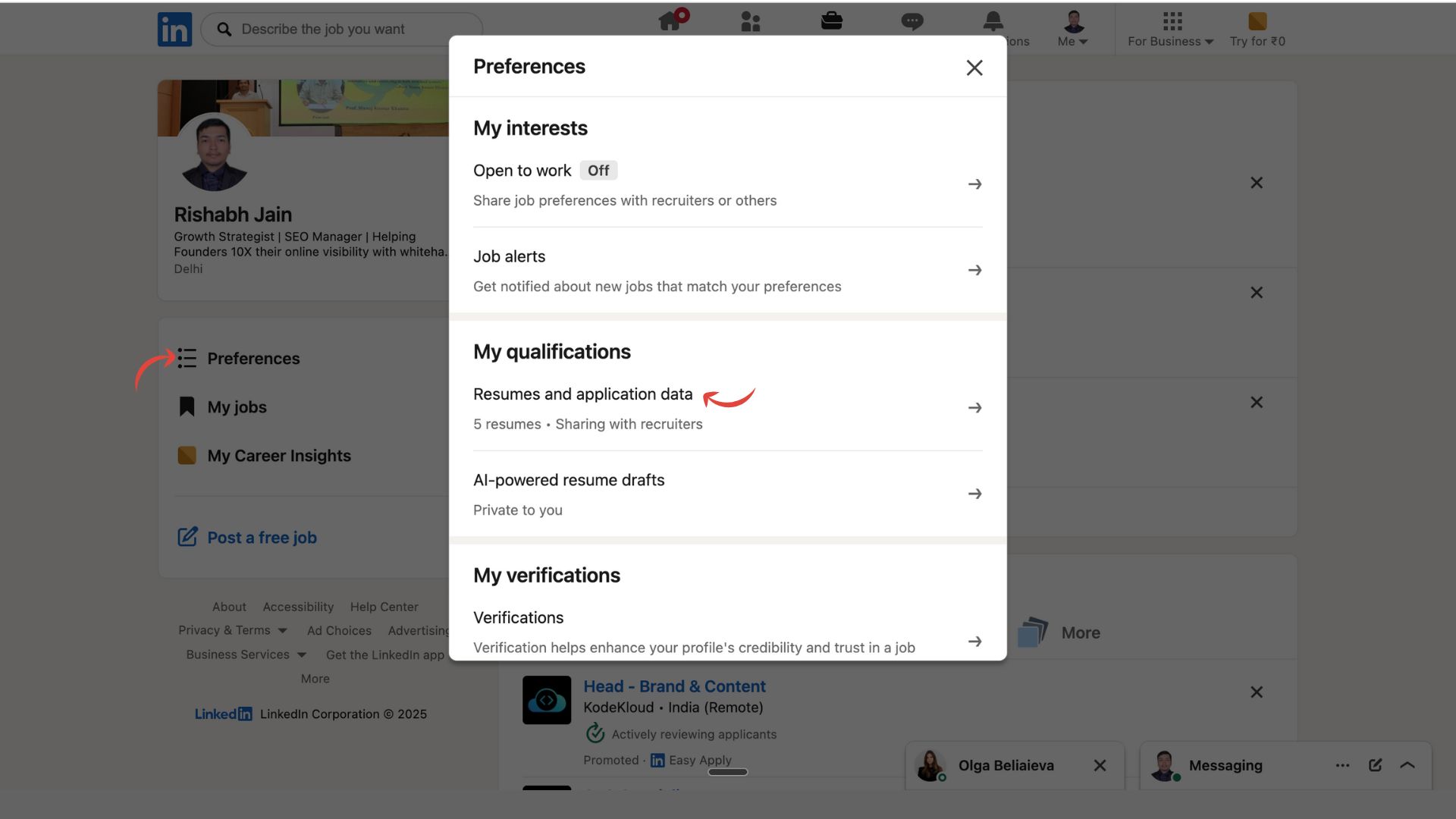
Step 3: Open “Resumes & Application Data.”
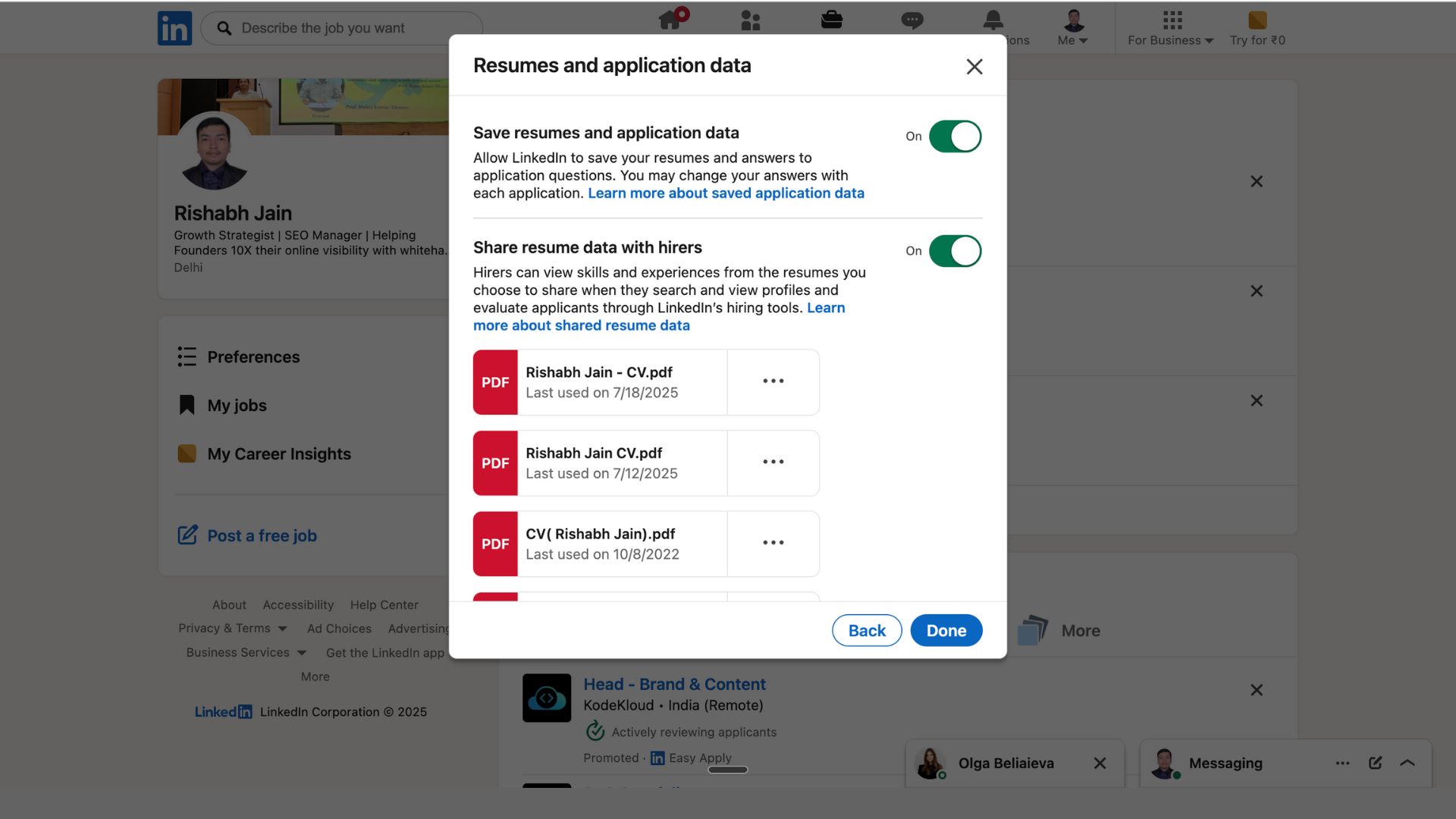
Step 4: You’ll see a list of your previously uploaded resumes.
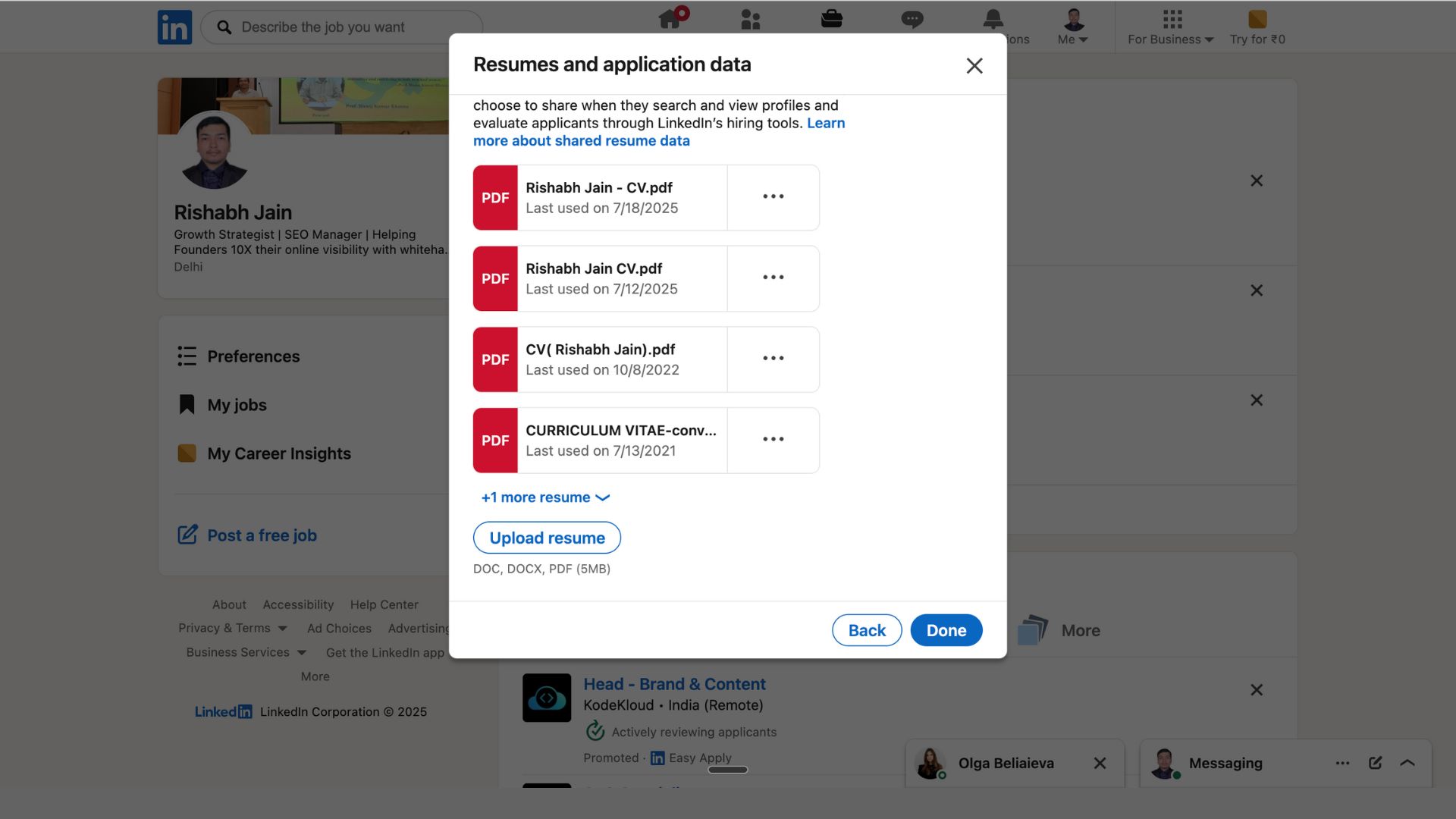
Step5: Click the three-dot menu (⋯) next to an outdated file and choose Delete.
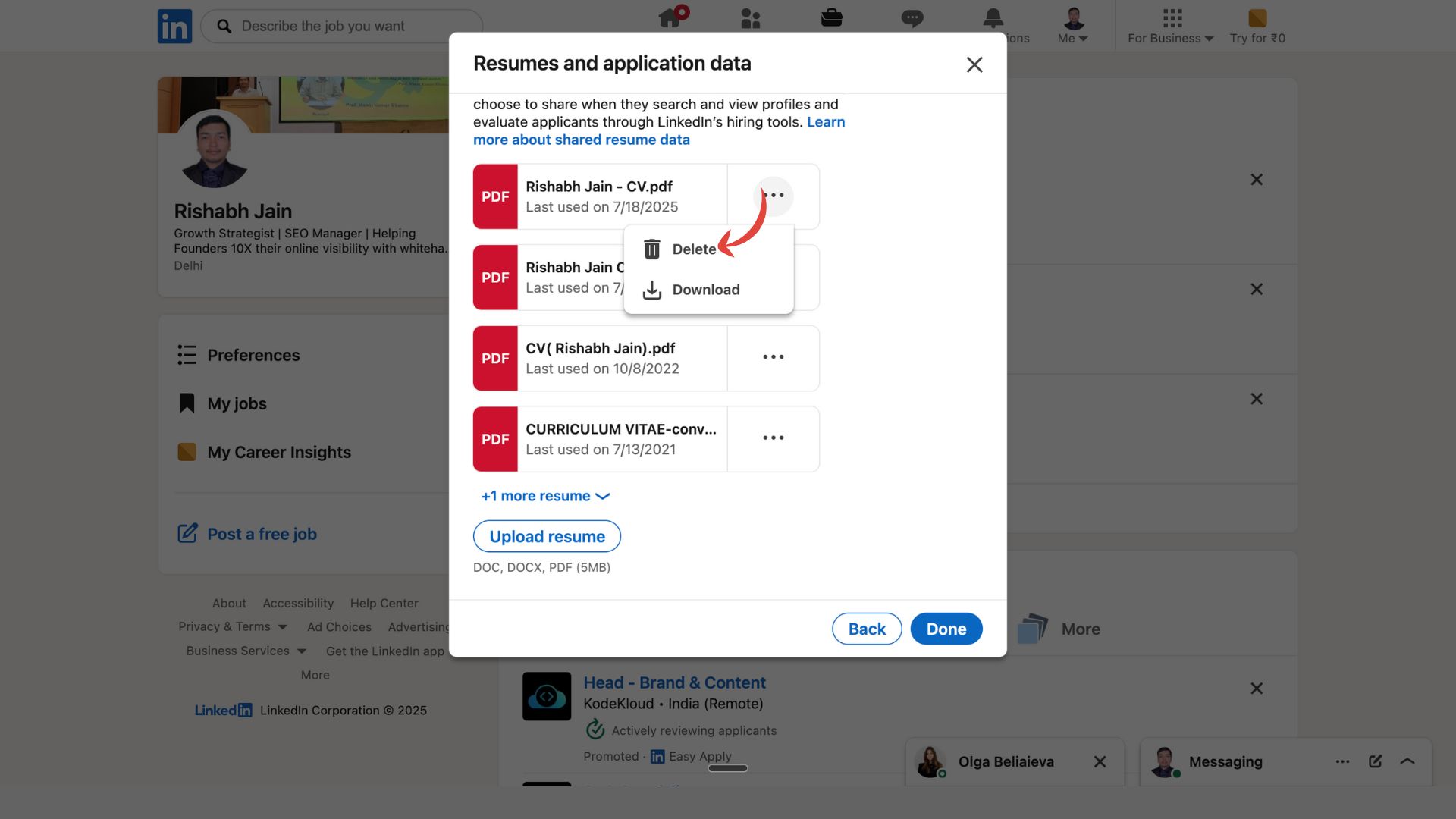
Step 5: Select Upload Resume and attach your new PDF or Word document (under 2 MB).
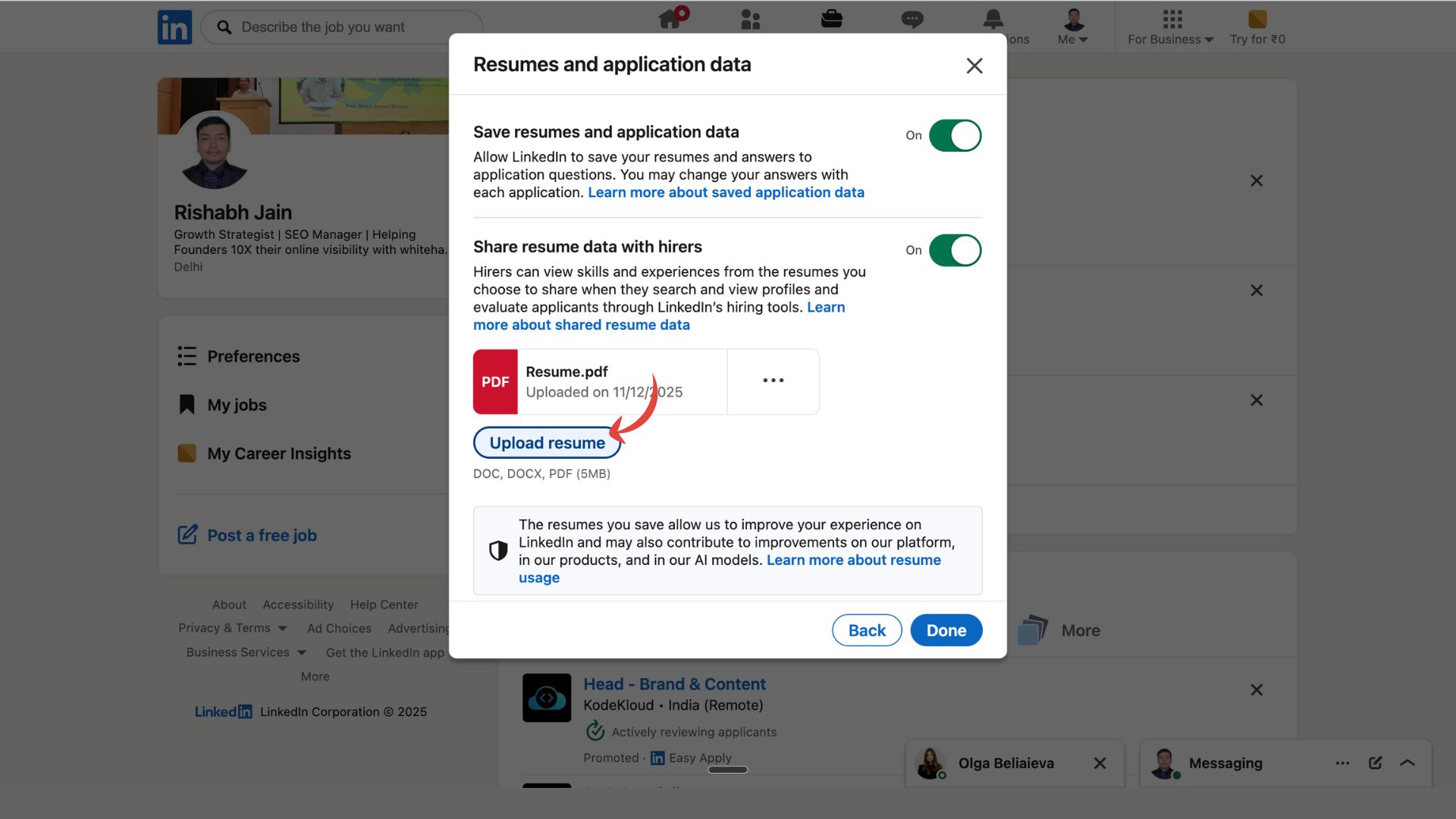
Once uploaded, your newest resume automatically becomes your default Easy Apply file, meaning every new application will use this version.
-> Quick Check: Open a random job listing, click Easy Apply, and confirm your new resume appears as the default file before submitting.
-> Pro Tip (2026): LinkedIn only stores the four most recent resumes you’ve uploaded. To stay organized, delete older versions before adding new ones. Keeping this section tidy ensures recruiters always receive your most up-to-date credentials—and helps LinkedIn’s algorithm display the right skills for relevant jobs.
Method 2: Change Resume in Your LinkedIn Profile (Featured Section)
If you’ve uploaded your resume to showcase it on your public profile — for example, under the Featured section — updating it here ensures visitors and recruiters always see your latest version.
Step 1: Go to your LinkedIn profile.
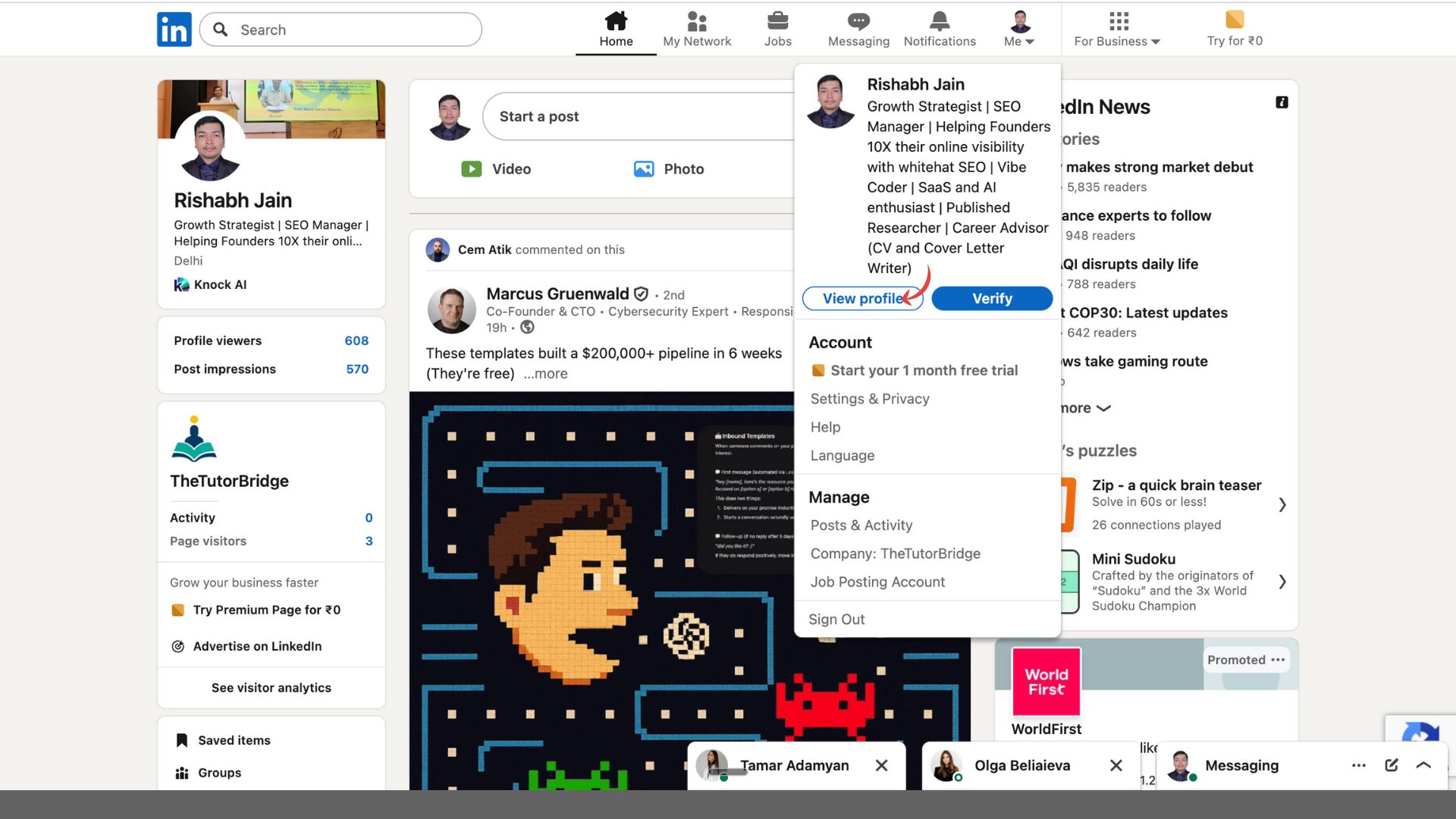
Step 2: Scroll down until you find the Featured section (it usually sits below the “About” section). (It will show if you have any existing resume or not)
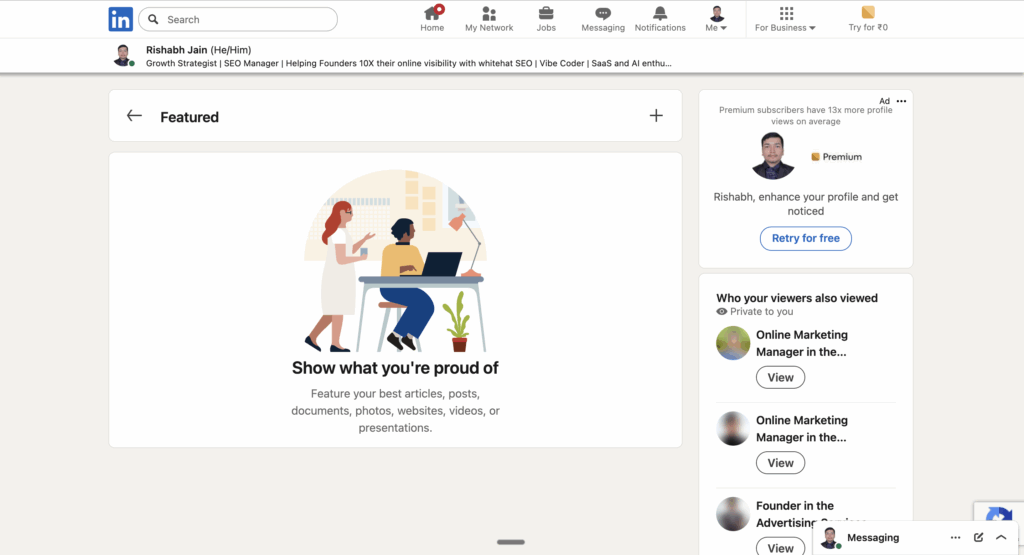
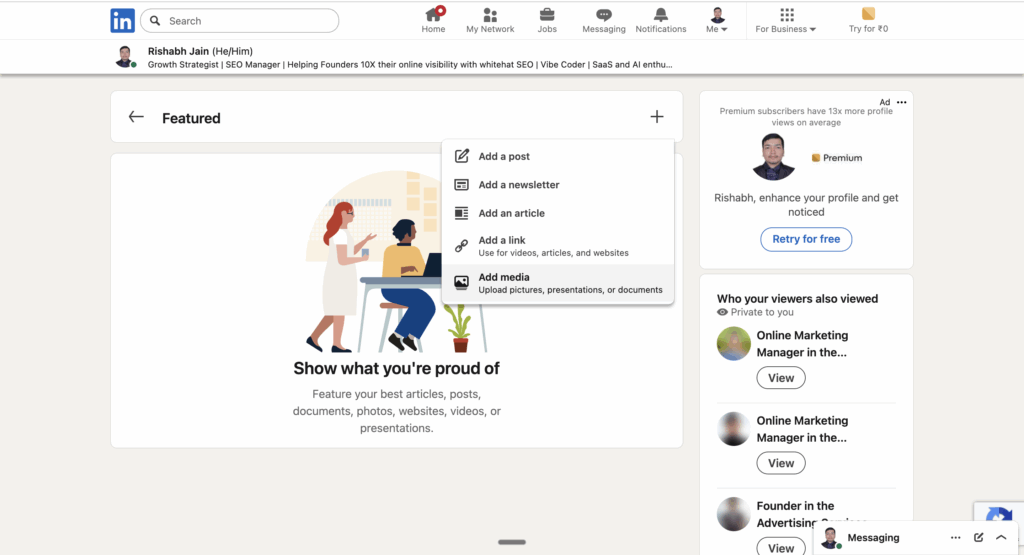
Step 3: Click the “+” button → select Add Media → then Upload new resume.
Feel free to add description and click save

Your new resume will instantly replace the old one and become visible to anyone viewing your profile.
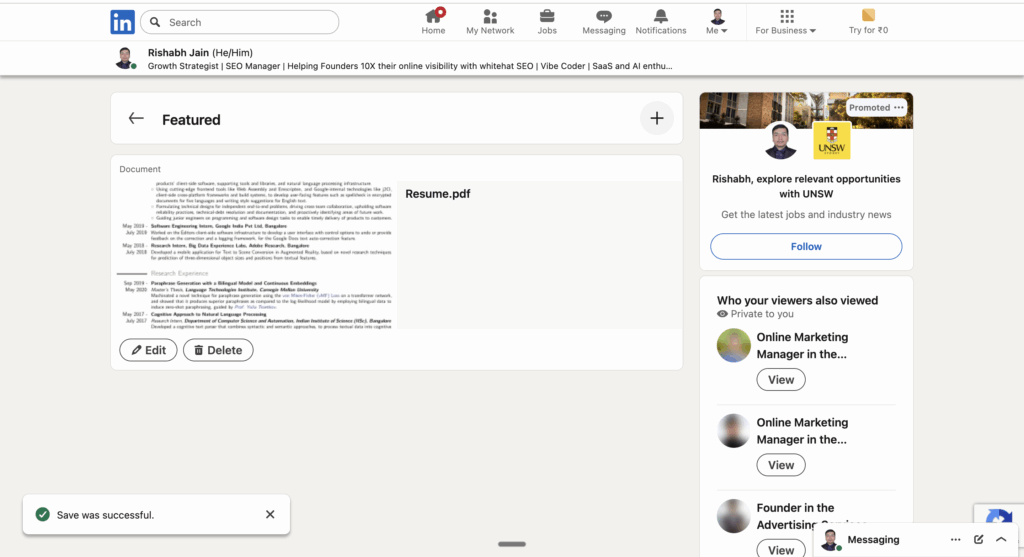

Again for deleting your resume on LinkedIn, click on pencil icon and delete your resume and it will again be deleted!
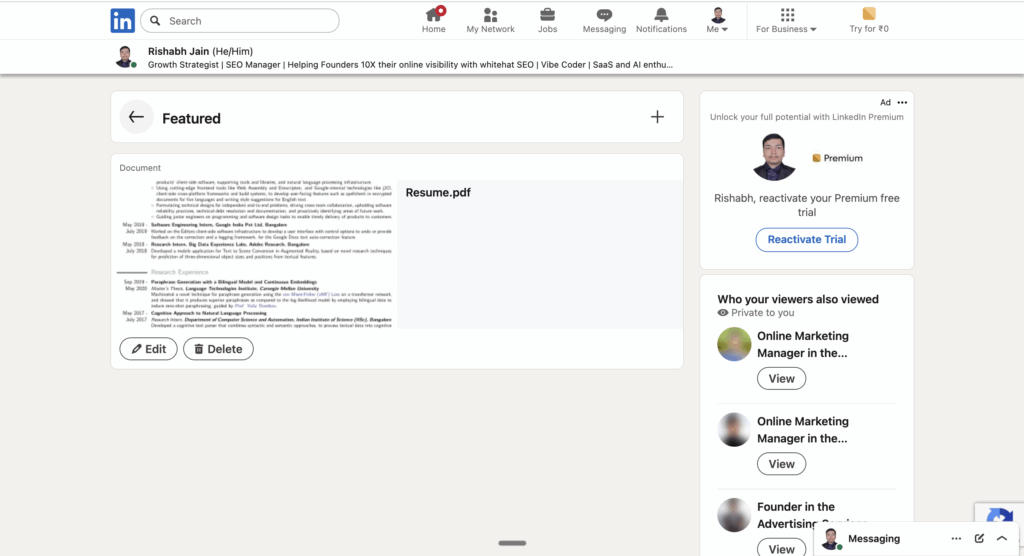
-> Note: The Featured section is public, meaning anyone who visits your profile can download or view your resume. However, the resume stored in Easy Apply (Method 1) is private and only visible to recruiters when you submit job applications.
-> Pro Tip (2026): Add a short caption when uploading your new file — such as “Updated 2026 Resume – Marketing Manager” — to make it look intentional and current. It subtly signals to recruiters that your profile is active and up to date.
Method 3: Remove Old Resume via Shortcut URL
If you want to skip all the extra clicks, LinkedIn has a direct shortcut where you can instantly manage, delete, or replace your uploaded resumes.
Step 1: Visit linkedin.com/jobs/application-settings
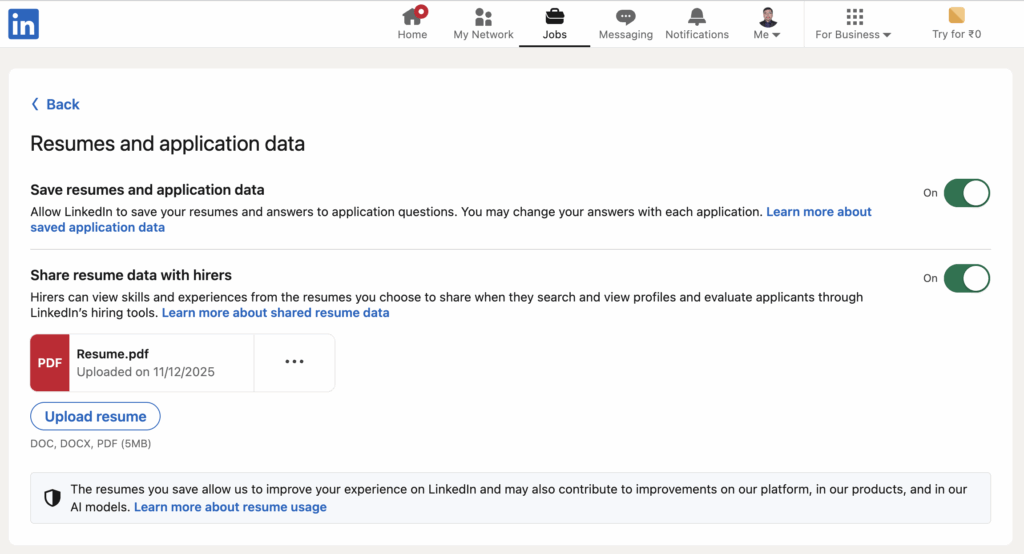
Step 2: Scroll to the section labeled “Resumes & Application Data.”
You’ll see every resume you’ve uploaded through Easy Apply.
Click the three-dot menu (⋯) next to any outdated file.
Choose Delete and confirm your action.
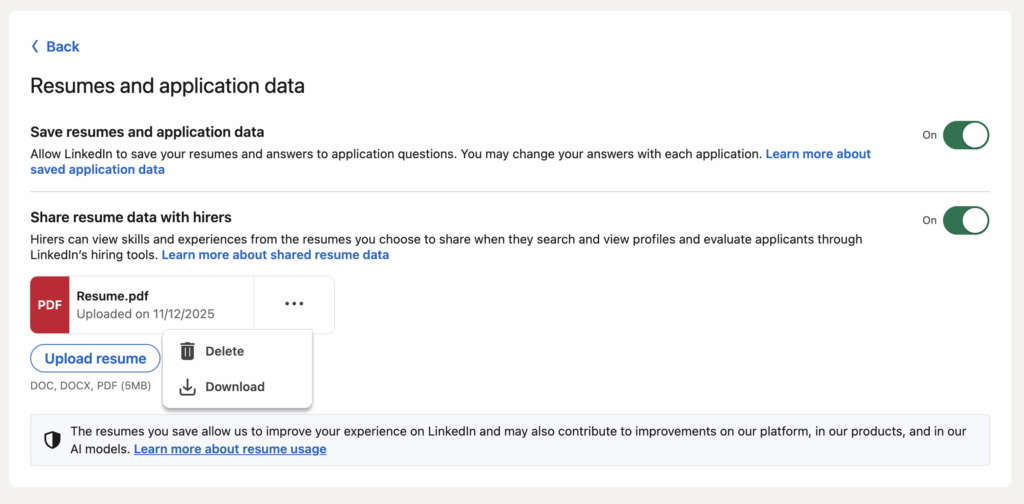
That’s it — your old resume is gone, and you can immediately upload a new one if needed.
-> Best for: Quick cleanup or replacing multiple resumes at once without navigating through your profile or job tabs.
-> Pro Tip (2026): Bookmark this URL or save it as a browser shortcut. It’s the fastest way to manage your resumes when you’re applying to several jobs in a day or updating your file on the go.
Manage & Optimize Resume Settings
How to Delete Your CV or Resume on LinkedIn
LinkedIn allows you to store and display resumes in different parts of your profile — which means deleting one copy doesn’t always remove the others. Depending on where your resume is uploaded, there are three main ways to delete it:
| Method | Path | Purpose |
|---|---|---|
| Jobs Tab | Jobs → Preferences → Resumes & Application Data | Delete resumes used for Easy Apply job submissions. |
| Profile | Profile → Featured → Delete | Remove resumes that appear publicly on your LinkedIn profile. |
| Shortcut Link | linkedin.com/jobs/application-settings | Quick access for direct deletion of uploaded resumes. |
Each option serves a different purpose:
- Use the Jobs Tab to manage resumes recruiters receive when you apply directly on LinkedIn.
- Use the Profile method to clean up what visitors see on your public page.
- Use the Shortcut Link for fast access — ideal if you’re removing multiple files or doing a quick cleanup.
-> Pro Tip (2026): Always double-check after deleting. Go back to your Jobs → Application Settings and verify there are no older uploads left. Keeping this section clean ensures LinkedIn’s AI only shows your most current skills, job titles, and keywords to recruiters.
How to Replace or Update CV on LinkedIn
Once you’ve deleted an outdated resume, the next step is uploading your new one so it appears in all future job applications.
- Delete your old upload through your Jobs → Application Settings page.
- Click Upload Resume and choose your latest file.
- Make sure it’s in PDF or Word format and under 2 MB — larger files won’t upload.
- After uploading, confirm that your document appears under “Recently Uploaded Resumes.”
- Test it by opening any job post and clicking Easy Apply to ensure your new resume is selected by default.
-> Pro Tip (2026): Rename your file before uploading — something like “JaneDoe-Resume-2026.pdf” looks cleaner, prevents confusion, and signals to recruiters that it’s current.
Share Resume Data with Recruiters
By default, LinkedIn lets you share your resume and application data with recruiters who use LinkedIn Recruiter — but you can easily control this.
- Go to Jobs → Application Settings.
- Locate the option “Share your profile with recruiters.”
- Toggle it Off if you prefer privacy or don’t want your resume automatically visible.
- Recruiters will still see your skills, headline, and work history, but not the full resume file.
-> Privacy Tip (2026): If you’re actively job-hunting while still employed, keep this toggle Off until you’re ready to apply. This prevents your current employer or internal recruiters from seeing recent resume updates.
-> Bonus Tip: Re-enable sharing once your resume is updated — it increases visibility and helps your profile appear in more recruiter searches.
Troubleshooting & Common Issues
Even though updating your resume on LinkedIn is usually straightforward, you might run into a few hiccups. Here are the most common issues users face — and exactly how to fix them.
Why Can’t I Find My Resume on LinkedIn?
If you can’t locate your uploaded resume, don’t worry — it’s usually a visibility or storage issue, not that your file disappeared.
- It’s stored under Easy Apply, not your profile.
Your resume doesn’t appear in your public profile unless you manually add it under the Featured section. Files uploaded through Easy Apply live in your private Application Settings, accessible only to you and recruiters who receive your applications. - Older uploads may have expired.
LinkedIn sometimes removes inactive resumes that haven’t been used or updated for 12 months or more. If that’s the case, just upload a fresh version. - Try the desktop version.
Some users report that resumes don’t always display correctly in the mobile app. Switch to LinkedIn on desktop and check again under Jobs → Application Settings to view all active files.
-> Quick Fix: Visit linkedin.com/jobs/application-settings directly — it’s the fastest way to see every uploaded resume.
Why Can’t I Delete My Old Resume?
Sometimes, your browser or app cache prevents LinkedIn’s settings from fully loading, making it seem like the delete button isn’t working. Here’s how to fix it:
- Use the direct link.
Go to linkedin.com/jobs/application-settings and delete resumes directly under Resumes & Application Data. - Switch browsers or clear cache.
If deletion doesn’t work on Chrome, try Firefox, Edge, or Safari. Clear your browser’s cache and cookies to refresh the LinkedIn interface. - Contact LinkedIn Support.
If the issue persists, go to Help → Jobs → Application Data Issue. Explain that your resume won’t delete, and support can manually remove the file for you.
-> Pro Tip (2026): Avoid re-uploading the same file multiple times — it can create hidden duplicates that cause confusion in your Easy Apply list. Always check for old files before adding a new one.
More LinkedIn Guides You Might Like
- How to See Who Viewed Your LinkedIn Profile (Free & Premium Guide)
- How Much Does LinkedIn Premium Cost in 2026?
- How to Cancel LinkedIn Premium (Step-by-Step)
- LinkedIn Premium vs LinkedIn Sales Navigator: Which to Choose?
- LinkedIn Automation Tools for Lead Generation & Growth
- How to Add a Promotion on LinkedIn (Easy Steps)
- Best AI SDR Tools for LinkedIn Outbound
- B2B Demand Generation Guide: Strategy, Process, Tactics & Examples
Frequently Asked Questions
1. How do I delete my resume from my LinkedIn profile?
Go to your Profile → Featured section, click the ✏️ pencil icon, and select Delete next to your uploaded file. This removes your resume from public view.
2. How do I completely remove my resume from LinkedIn?
Visit linkedin.com/jobs/application-settings, scroll to Resumes & Application Data, and delete all listed files. That clears every resume you’ve ever uploaded for Easy Apply jobs.
3. How do I delete old resumes on LinkedIn?
Go to Jobs → Preferences → Resumes & Application Data, open the three-dot menu (⋯) next to each outdated file, and choose Delete. Keep only your most recent version to avoid confusion.
4. How do I change or update my resume on LinkedIn?
Delete your old resume and upload a new one under Jobs → Application Settings. LinkedIn automatically makes the latest file your default resume for job applications.
5. Where can I find my resume on the LinkedIn mobile app?
Open the Jobs tab → tap your profile icon → select Application Settings → then Resumes & Application Data. All your stored resumes will appear there.
6. How do I stop LinkedIn from sharing my resume with recruiters?
Under Jobs → Application Settings, locate “Share your profile with recruiters.” Toggle it Off if you want privacy. Recruiters will still see your skills and experience but won’t have access to your full resume file.
7. How many resumes can I store on LinkedIn?
LinkedIn keeps up to four recent uploads. If you add a fifth, the oldest one will automatically be removed. It’s best to manually delete older versions to keep your dashboard organized.
8. Can I remove my resume from LinkedIn Easy Apply but keep it on my profile?
Yes — deleting resumes under Jobs → Application Settings only removes files used for job applications. Your Featured section resume stays visible until you delete it manually.
9. Why doesn’t my new resume show up when I apply for jobs?
It might still be using an older default file. Delete unused versions and upload your new resume again under Application Settings — this refreshes it instantly for all future applications.
10. How often should I update my LinkedIn resume?
Ideally every 3–6 months, or after any major promotion, certification, or skill change. Keeping it fresh helps your profile surface higher in recruiter searches.

November 12, 2025
| |9 min read
| |Articles
Check our recent articles

Stop begging colleagues for posts likes.
Auto-like your corporate posts and boost your social performance.